
Printing a PDF file seems simple as long as you stick to a standard format. The difficulty arises when the document exceeds the size of the sheet, when you want to group several pages onto a single sheet, or when you need to cut a large page into several pieces to be assembled. These three use cases require different settings in common software, and confusing them leads to disappointing results: truncated text, distorted scale, lost margins.
Tiling and multipage printing: two distinct logics
The most common confusion concerns the difference between “multiple pages per sheet” and “one page spread across multiple sheets.” The first operation reduces the size of each page to fit two, four, or more on a single sheet. The second, called tiling or poster mode, does the opposite: it cuts a large PDF page into several sheets intended to be assembled.
In Adobe Acrobat, the Poster mode offers settings for overlap and crop marks. The repeated band between the sheets allows for aligning the pieces during assembly. Anyone wishing to easily print a PDF file in tiles must check one specific point: the “Fit to Page” option can alter the intended scale. To preserve the actual dimensions of the document, you should choose “Actual Size” or force the scale to 100%.
This detail has concrete consequences. An architectural plan printed with “Fit to Page” checked will lose its correspondence with the indicated scale. On a poster, the visual rendering will be correct, but the dimensions will not match the expected format.
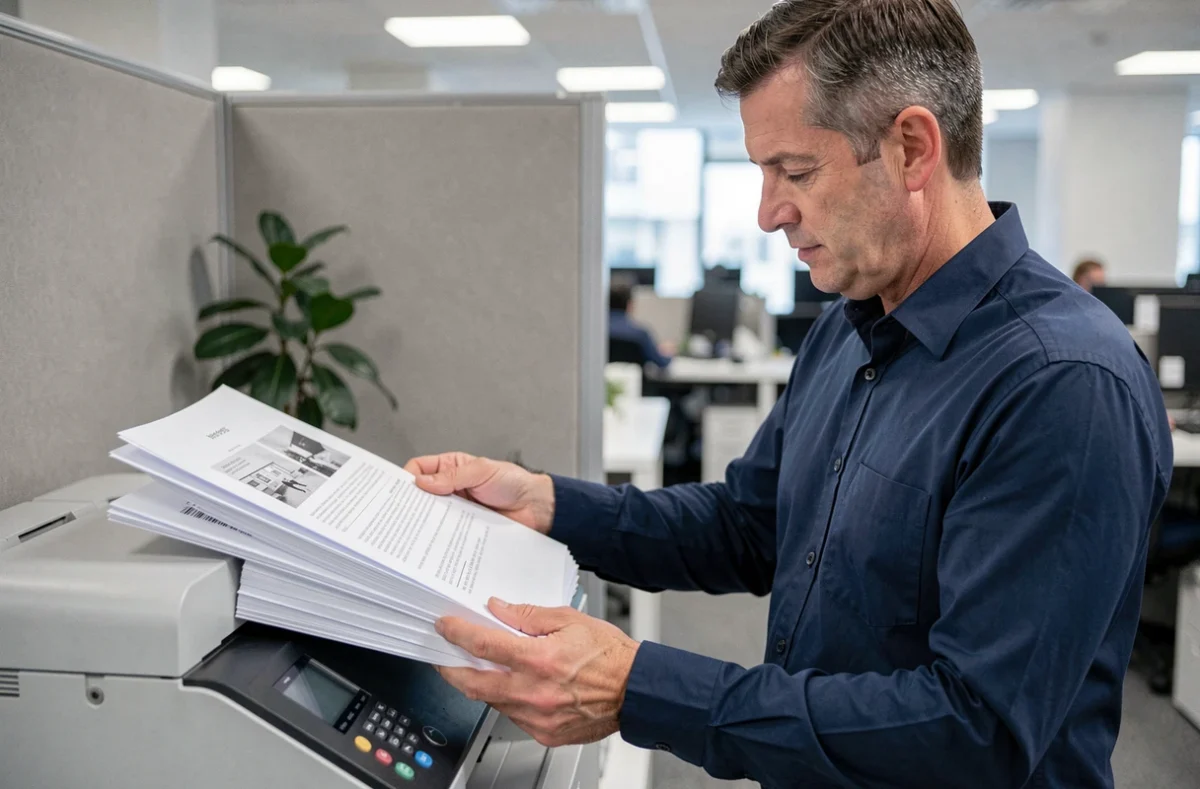
PDF printing settings: what each software handles differently
PDF reading software does not all offer the same printing options, and the names of the settings vary.
Adobe Acrobat and Acrobat Reader
The print dialog in Acrobat offers the choice between “Actual Size,” “Reduce Pages to Fit,” and “Poster.” The Poster mode automatically cuts the page into printable tiles. You can adjust the overlap area and enable crop marks to facilitate assembly.
The “Multiple Pages per Sheet” mode is accessible via the “Page Setup” menu. You select the number of pages per sheet (2, 4, 6, 9, 16) and the layout order (horizontal or vertical).
Alternatives on Windows and macOS
On Windows, most printers include a driver that offers its own layout options. The “Pages per Sheet” setting is often accessible in the printer properties rather than in the PDF software itself. On macOS, the system print window offers a “Page Setup” menu with a choice of pages per sheet, regardless of the PDF reader used.
Free readers like Foxit Reader or SumatraPDF offer the grouping of pages per sheet, but the poster mode is not always available outside of Acrobat. To cut a large format into tiles, you may sometimes need to use a dedicated tool or the paid version of the software.
Resolution and quality of the original PDF: the forgotten factor
Enlarging a PDF across multiple sheets does not create additional details. If the source document is a low-resolution image, each printed tile will be blurry or pixelated. This problem is invisible as long as you print at a reduced size, but it becomes glaring as soon as you switch to poster mode.
Before launching a tiling print, check the resolution of the graphic elements in the PDF. A vector document (text, diagrams, vector illustrations) will support any enlargement without loss. A PDF containing bitmap images requires sufficient resolution for the intended final format.
A test on a single sheet before the full print run allows you to check the scale, margins, and sharpness. This check prevents wasting paper and ink on an entire mosaic whose rendering would be disappointing.
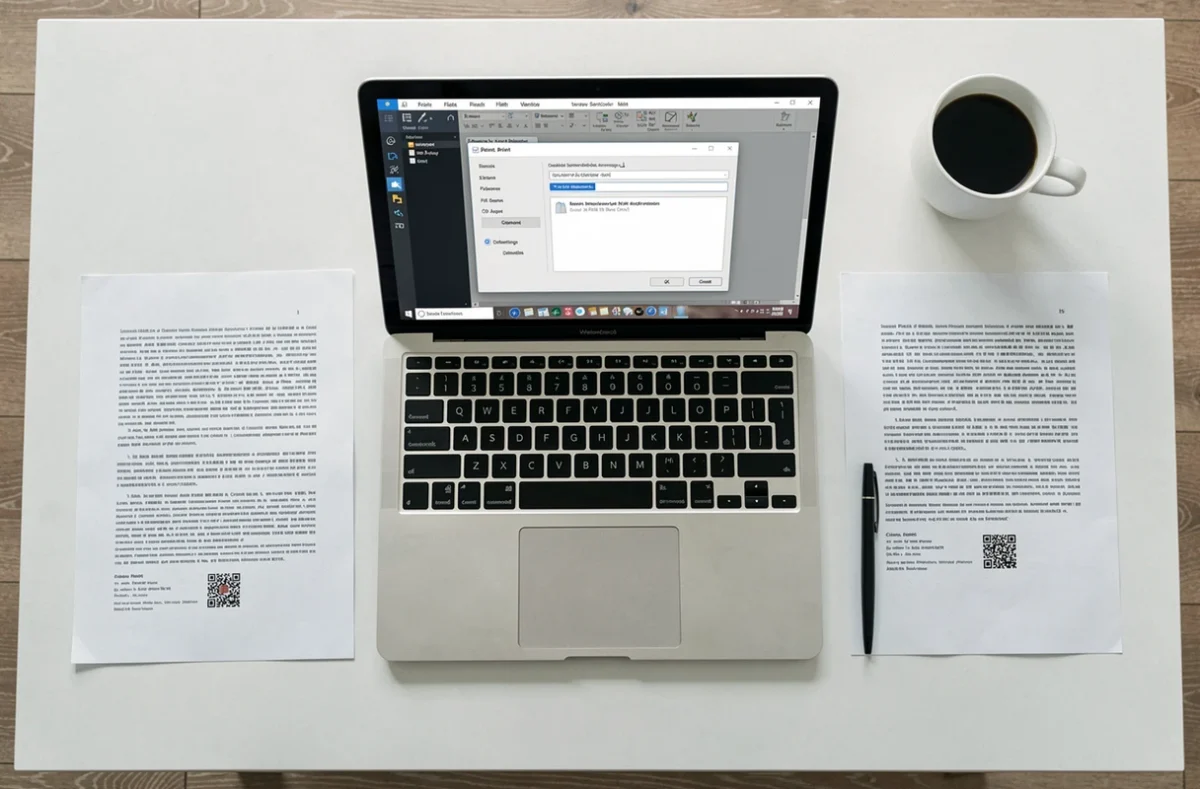
Step-by-step method to print a PDF across multiple sheets with Acrobat
The procedure in Acrobat remains the reference because it consolidates all settings in one place. Here are the steps for poster mode:
- Open the PDF in Acrobat, then go to File, Print. In the “Page Size & Handling” section, select “Poster.”
- Adjust the overlap area according to the desired assembly precision. A value that is too low complicates alignment, while a value that is too high wastes paper unnecessarily.
- Check “Cut Marks” to have visual guides on each sheet. Ensure that the displayed scale matches the expected one.
- Print a first test sheet before launching the full batch, to validate the rendering and printer margins.
For the reverse case (grouping multiple pages onto one sheet), the procedure differs:
- In the print dialog, select “Multiple Pages per Sheet” under the sizing menu.
- Choose the number of pages per sheet and the reading order (left-right or top-bottom).
- Check the preview before printing. A landscape document grouped on a portrait sheet can produce tiny pages if the orientation is not adjusted.
Common issues and limitations of printer drivers
Some printer drivers add non-modifiable margins that reduce the printable area. On a standard print, the loss is negligible. On a mosaic, it shifts each tile and complicates assembly. Each printer has its own minimum margins, usually indicated in the manufacturer’s specifications.
Another pitfall concerns protected PDFs. Some documents have restrictions that prohibit printing or limit output quality. The software then displays an error message or prints in low resolution without clear warning.
Finally, batch printing multiple PDF files at once (multiple selection then right-click, “Print”) works on Windows and macOS, but the print order is not guaranteed. The system sends the files to the printer in an order that depends on the file system, not on the name or date. To control the order, merging the PDFs into a single document before printing remains the reliable method.
PDF printing settings cover very different use cases under sometimes similar names. Identifying whether you are looking to reduce, enlarge, or group before opening the dialog box avoids most errors. The test on a single sheet, often overlooked, remains the best safeguard before a series print.